The Lesson page is the heart of Teach Us the Bible. It gives your teaching team everything they need to prepare and deliver a lesson — from background reading and personal prep notes to the full lesson flow and reinforcement activities.
Getting to a Lesson
From your dashboard, click any lesson on the upcoming schedule to open it. You can also browse all lessons using the lesson menu on the right side of the screen.
Each lesson displays your ministry's scheduled date and the lesson's scripture passage (linked to BibleGateway) in the header. The print button builds a PDF of the lesson straight from the page.
Lesson Prep
The Lesson Prep section helps teachers get ready before Sunday. It contains everything a teacher needs to do during the week, not necessarily things they'll reference while teaching.
Background Scripture
A longer passage of scripture that gives the full context for the lesson. Teachers should read this 2–3 times during the week — not just the day before. This section is about deep familiarity, not memorization.
Story Summary
A concise retelling of the lesson's Bible story — the cliff's notes version. Use this to get the narrative clearly in your head before Sunday, and as a quick refresher right before class starts.
Admin Note Admins only
As a Ministry Administrator, you can write a note that appears on this lesson for every teacher in your organization. Use it for specifics about how you want your teachers to teach the lesson, doctrinal distinctions, reminders, or anything your whole team needs to know.
Personal Notes
A private space for each teacher's own notes. Personal notes are never shared with other teachers or administrators — they're just for you. Great for jotting down personal illustrations, things that went well last time, or questions you want to look up.
What You Will Need
The supplies, snack, and take-home items for the lesson itself — not for the reinforcement activities. Activity supplies are listed separately on each activity card. Review this list a few days before so you have time to gather everything.
Video Options
These are usually cartoon retellings of the lesson story, curated from around the web. These videos will focus on retelling the story in a way that's engaging for children. Note: be sure you are following copyright guidelines when using these videos.
Click Use this video on any video to mark the one you plan to use. If your ministry has leader selection turned on, the video you choose is recommended to your whole team — they'll see it marked as the Leader's pick — and it's the video sent when you email your teachers.
Resource Sheets
Printable PDF resources attached to the lesson, shown in the right sidebar. These will always include a coloring sheet that is designed to highlight a specific aspect of the story. You may also find other resource sheets needed here for teaching the Bible story itself.
The Lesson
The Lesson section contains the six-step structure your teaching team can follow during class. Each step is designed to build on the previous one — from opening engagement to scripture memory.
Warm Up
An opening activity or discussion question to get kids engaged and thinking. Designed to happen as kids are arriving and settling in — low-pressure, relationship-building, and thematically connected to the day's story.
Teach the Story
The core storytelling moment. The curriculum gives you the narrative, key details to emphasize, and guidance for how to present it in an engaging, age-appropriate way. This is where the Bible story can come alive for kids.
Bible Mastery
A hands-on Bible skills component — helping kids practice finding books and passages in their Bibles. This builds familiarity with scripture navigation and helps kids feel confident using their Bibles independently.
Comprehension Questions
Factual questions that check whether kids understood what happened in the story. These are recall-based — there's a right answer. Not sure about an answer yourself? The lesson includes a guide for what to do when you don't know: be honest, look it up together, and model that adults keep learning too. This turns a gap in knowledge into a teaching moment about intellectual humility and lifelong faith.
Faith Questions
Open-ended discussion questions that invite kids to connect the story to their own lives and faith. There are no wrong answers here — the goal is honest conversation and helping kids develop a personal relationship with the God they're learning about in the story.
Memory Verse
The week's scripture memory verse. We provide a default set of memory verses that are printed on each coloring sheet. Or, if you would like to use your own memory verse at your own pace, you can set it in Ministry Settings. Shown here in context so teachers can practice it and lead kids through it. Consistent memorization builds a lifelong store of scripture kids can draw on.
Reinforcement Activities
The Reinforcement Activities section is where teachers choose hands-on activities to close out the lesson. Activities reinforce the Bible story through crafts, games, discussion, and creative exercises.
Age Filters
Filter activities by age group: All Ages, Early Elementary (K–2nd), or Late Elementary (3rd–5th). Pick activities that fit your kids rather than trying to make every activity work for every age. Each activity card shows its age group label.
Scripture Tie-In
Each activity includes a short note explaining how it connects to the lesson's scripture passage. Use this to help kids see the link between the activity and what they just learned — it turns "fun craft time" into meaningful reinforcement.
Printing Activities
Click the print icon on each activity you plan to use. That marks it, and the mark sticks — come back on Saturday and you'll see what you chose. When you print, you can send just those to the PDF, or all of them, or none. Marking them a few days before Sunday also gives you time to gather supplies.
Ministry Leaders: if your ministry has leader selection turned on, the activities you select here are automatically marked for your whole team and are the ones sent when you email your teachers.
Ratings
After using an activity, rate it with 1–5 stars. Ratings are shared across all Ministry Edition subscribers. Over time, highly-rated activities rise to the top.
Share Yours
Have a great activity idea that's not in the curriculum? Click Share Yours to submit it. Submitted activities are reviewed before being added to the platform so other ministries can benefit from what's working in your classroom.
Generating a Print-Ready PDF
You can generate a high-quality PDF of any lesson with one click. The PDF always includes the full lesson — story summary, lesson steps, memory verse, and prep materials. When you print, you're asked what to do with the reinforcement activities: include all of them, just the ones you've marked, or none.
Ministry Edition subscribers generate PDFs instantly, with no interruptions. Not a subscriber? You can still download the same PDF for free — just enter your email address the first time. We'll remember it on your device so you won't be asked again, and you can unsubscribe from our occasional curriculum tips anytime. Signed-out downloads include every activity, since marking them needs an account.
Step 1 Click the PDF button
Click the PDF button — available in two places: the lesson title header at the top of the page, or the floating button in the bottom-right corner of the screen (visible as you scroll). Either one generates the same PDF.
In the lesson title header
Floating button (bottom-right, visible while scrolling)
Step 2 Choose which activities go in
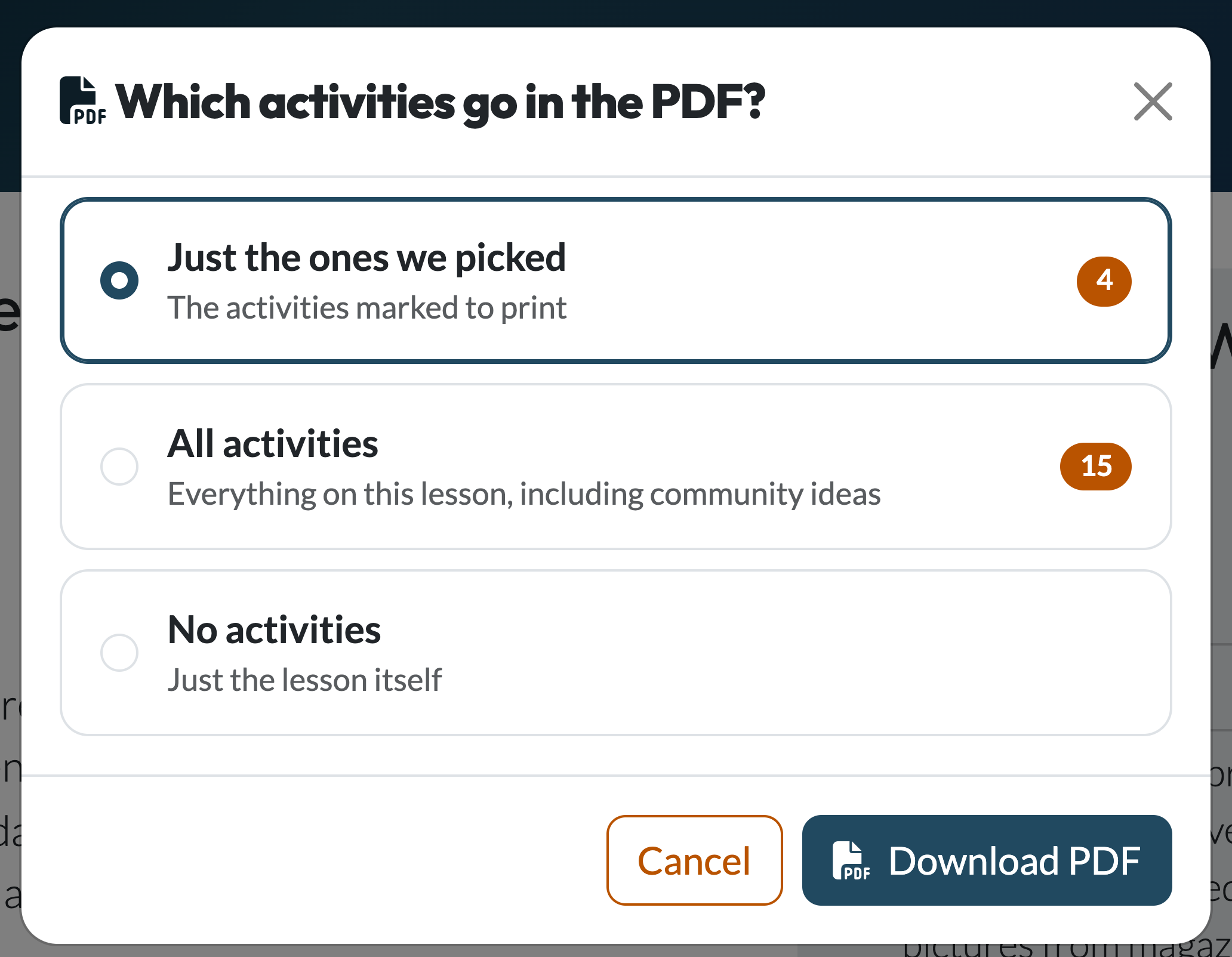
A short prompt asks what to include, with the count for each option so you know what you're getting:
- Just the ones we picked — the activities marked with the print icon in the Reinforcement Activities section. If your ministry leader picks activities for the team, theirs count too.
- All activities — everything on the lesson, including ideas shared by other churches.
- No activities — the lesson on its own.
Your browser downloads the PDF straight away. We remember your choice, so the next lesson you print starts on the same option.
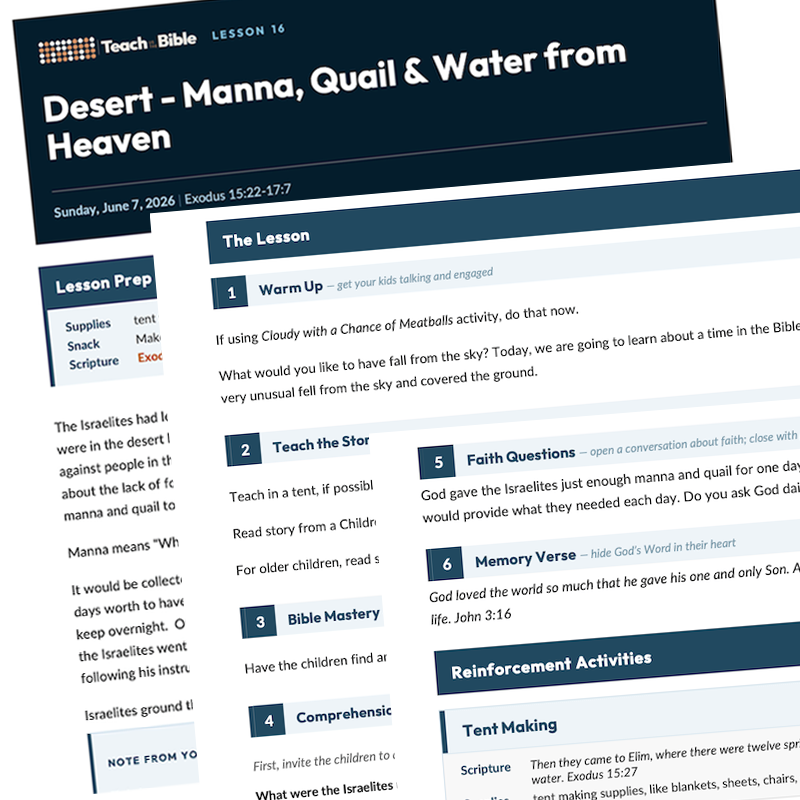
Example of a generated lesson PDF
Prefer your browser's own print dialog? Go to File → Print. The lesson page includes print styles that hide navigation and sidebars automatically, and only the activities you've marked are printed that way.
Printing Several Weeks at Once
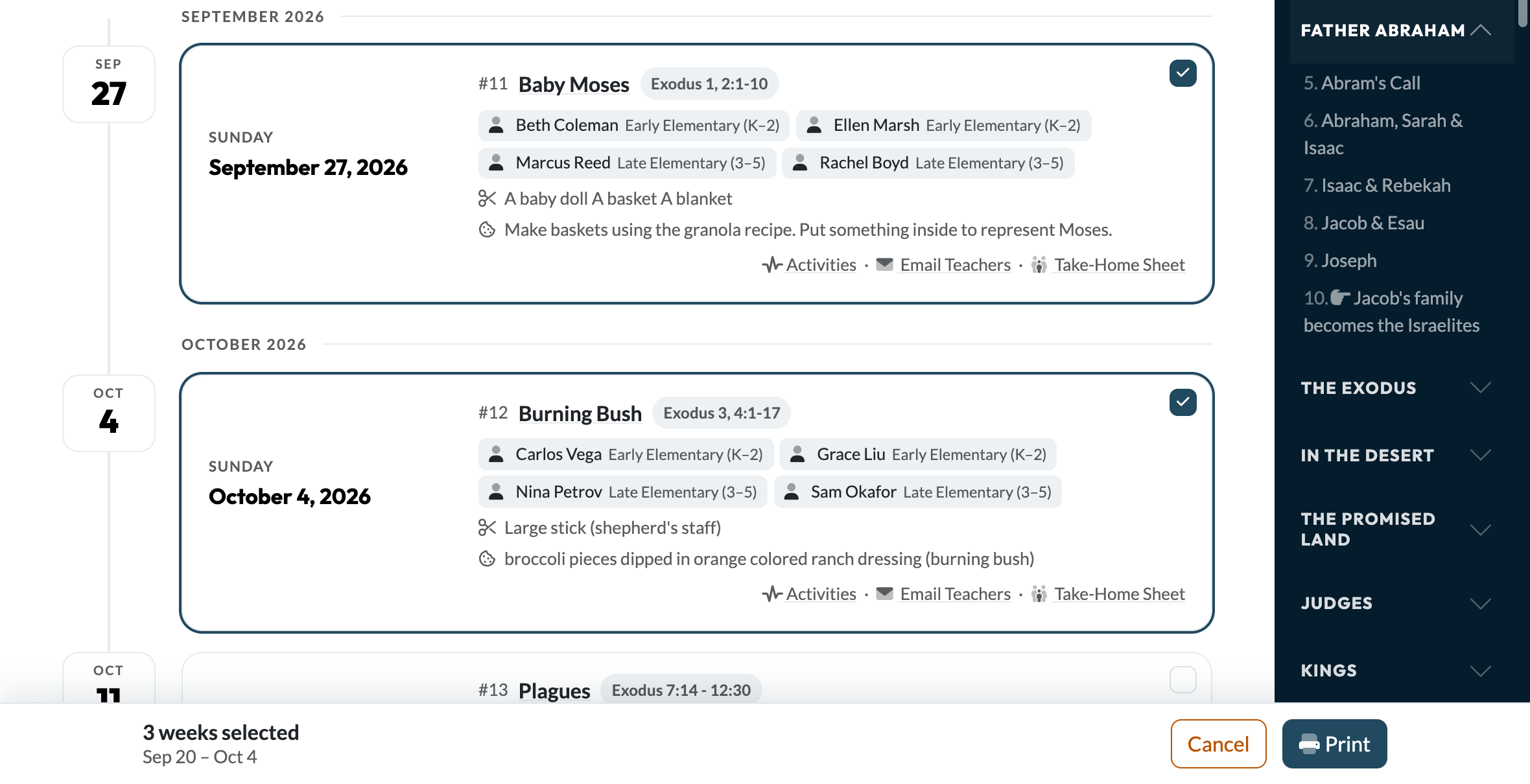
Preparing a month at a time? You don't have to visit each lesson. On Looking Ahead, Print several weeks of Lesson PDFs (just under the page heading) turns the list of upcoming weeks into a pick list.
Step 1 Tick the weeks you want
Click any week to include it — the Up Next card counts too. A bar along the bottom keeps track, naming the range you've selected so you can see at a glance that you've got the right stretch of Sundays. You can print up to eight weeks in one go; past that, the remaining weeks grey out.
Step 2 Choose the activities, then print
The same three choices as a single lesson, with the counts added up across every week you've ticked. Everything arrives as one PDF, in date order, each lesson starting on a fresh page. Building it takes a few seconds — the button shows its progress, and the download starts on its own.
In-Page Help
Each major section of the lesson page has a help icon in the section header. Clicking it opens a quick-reference guide for that section — covering tips and best practices from the curriculum team. These are great to share with new teachers who are getting oriented.